Bureaublad
Bureaublad is the MijnBureau home page: one overview with the applications your organisation has enabled, global search, and shortcuts to the things you use most. It is the page to bookmark and the page new colleagues start from. Bureaublad is under active development, so tiles and shortcuts can change between releases.
Opening it
Go to https://bureaublad.<global.domain> and sign in if asked. After signing
in you are returned to the overview.
Every tool also works standalone at its own address (for example
https://docs.<global.domain>); the Bureaublad is simply the convenient
starting point.
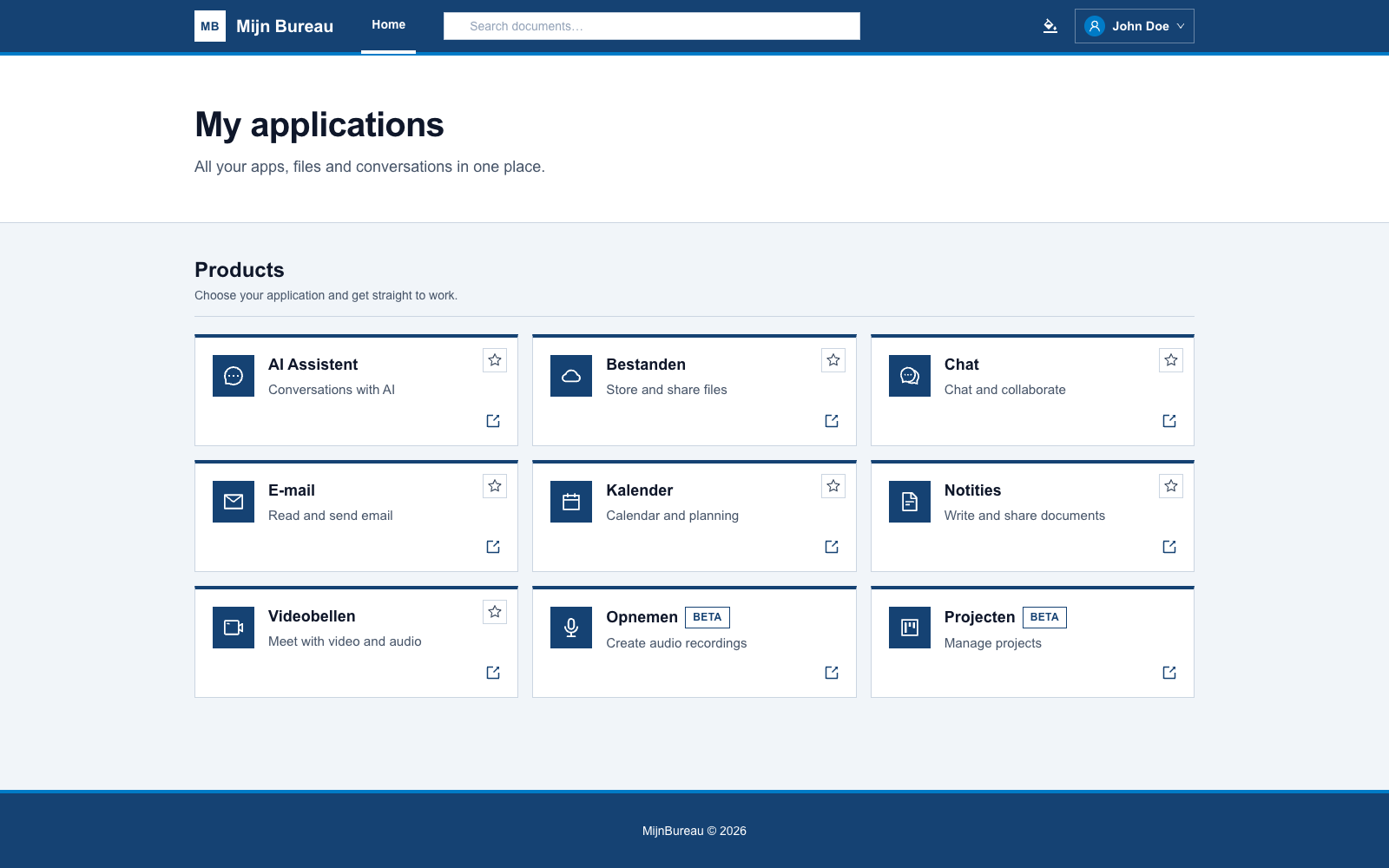
What is on the page
- Application tiles — the tools enabled for your organisation: chat, mail, calendar, meetings, files, documents, projects, the directory, transcription, the AI assistant. Disabled tools are not shown.
- Search — a single search box that queries the global search service (Find) across your documents and files. Availability depends on the deployment; see Search.
- Your shortcuts — depending on configuration, recently used items or favourite applications.
- Account menu — your name in the corner opens your profile, sessions and sign-out (Your account).
Using the search box
- Click the search field (or press
/if your keyboard focus is on the page). - Type a word or phrase: a document title, a sentence you remember, a file name.
- Press Enter.
- Results are grouped by application (Docs, Drive, …). Each result opens the item in its own application.
- Click a person's name or a team in the results to open their directory entry instead.
Search matches content, not just titles, so it is fine to search for a phrase you remember from a meeting note.
Moving between tools
- Open a tool, do your work, and navigate back with your browser: you stay signed in.
- The MijnBureau header (logo on the left) brings you back to the Bureaublad from most applications.
- On chat, mail and meetings look for the small Mijn Bureau button in the corner: it returns you to the overview without losing your call.
Tips
- Pin the Bureaublad as your browser start page. It is the fastest route to everything else.
- Prefer direct links (e.g.
https://calendars.<global.domain>) for tools you use all day; they open one click faster. - If a tile is missing, the application is not enabled for your organisation — ask your administrator rather than looking for another address.
- On a small screen the tiles stack vertically; add the page to your home screen for an app-like shortcut.
Good to know
- The Bureaublad itself holds no documents; it only links to the tools that do.
- Search results respect the permissions of the underlying application: if you cannot open a document in Docs, it will not appear here either.
- Colours, logo and the header are set centrally by your organisation's branding, so screenshots from other organisations may look different.
Related
- Overview — the tool map and sign-in explanation
- Search — how the search service works
- Your account — profile and sessions