Calendar
Calendar is the MijnBureau agenda: personal calendars, shared team calendars and invitations that work with the rest of your mailbox. It is the tool to schedule meetings and to see, in one view, when colleagues are available.
Opening it
- Web:
https://calendars.<global.domain> - From the Bureaublad: the calendar tile
The views
| View | Use it for |
|---|---|
| Day | A busy day with overlapping meetings |
| Week | Planning the coming days, seeing free slots |
| Month | Overview of deadlines and holidays |
| Agenda / list | Scrolling through upcoming events across calendars |
Switch views with the selector in the toolbar; the arrows move one period forward or back, Today jumps back to now.
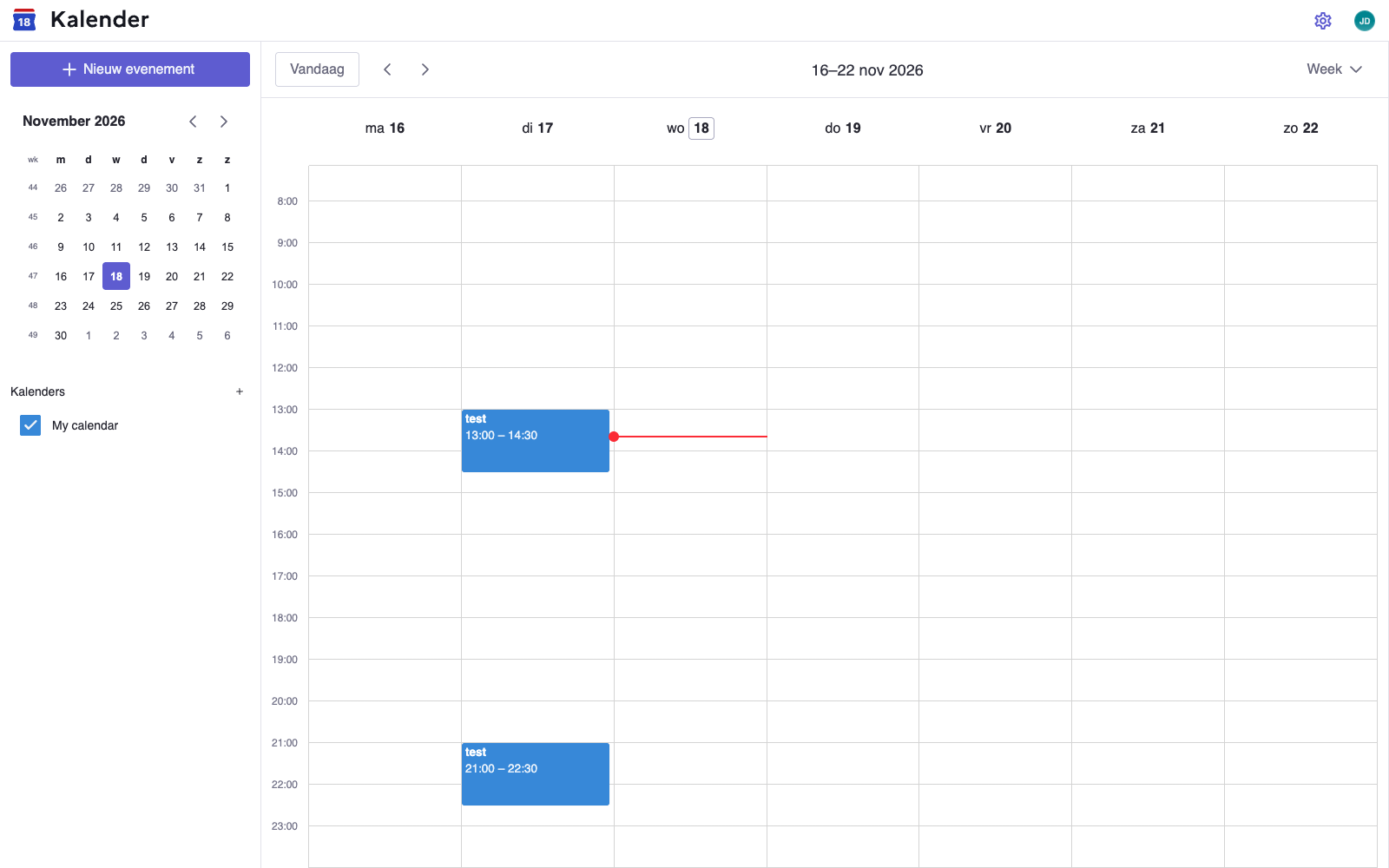
Creating an event
- Click New event (or drag a time slot in the week view).
- Give it a title, start and end time. All-day events are supported.
- Choose the calendar it belongs to: your personal calendar, or a shared team calendar other people can see.
- Add a location, or paste a Meet link as the meeting location.
- Invite participants by name or e-mail address.
- Set a reminder (for example 10 minutes before) and save.
Invitations are sent by mail; participants accept or decline, and the answers appear in the event.
Recurring events and exceptions
- Choose a repeat pattern (daily, weekly, monthly, yearly) with an end date.
- Edit a repeating event and choose whether the change applies to this occurrence or all occurrences.
- Cancel a single occurrence instead of the whole series when one meeting is skipped — the series stays intact.
Shared and team calendars
- Your administrator grants access to shared calendars; they then appear under Other calendars.
- Access levels follow the usual roles: read-only for information calendars, edit for team calendars where everybody maintains events.
- Use colour coding per calendar so week views stay readable.
- Typical setup: one personal calendar, one per team, one for company-wide events, and read-only calendars for holidays or room bookings.
Availability and booking links
To schedule with someone:
- Open the week view with their calendar visible (if it is shared with you), or
- Use Find a time in the event editor to compare availability, or
- Share a booking link with people outside the organisation when your deployment enables booking pages: they pick a free slot, and the event is created in your calendar automatically.
Booking links are the easiest way to let externals plan with you without exposing your whole agenda.
Reminders and notifications
- Reminders can be in-app, by e-mail, or both, and apply per event.
- Default reminders are set per calendar, so new events inherit them.
- Notifications for invitations arrive in Mail as well; accept there or in the calendar — either way the event updates.
Good to know
- Times are shown in your profile's time zone; check the time zone when scheduling across regions.
- Invitations sent to external addresses contain standard calendar data, so Outlook, Google Calendar and Apple Calendar users can accept them.
- The platform also offers CalDAV access, which lets desktop clients read and write the same calendars — ask your administrator for the endpoint and credentials if you prefer a native calendar app.
- Deleting a calendar is not possible from the UI when it is still shared; hand ownership over first.
Related
- Meet — the meeting link you attach to an event
- Mail — invitations and reminders
- Component documentation — how calendars are deployed