Office editing (Collabora)
Collabora Online is the office suite inside MijnBureau. It is not a separate
application you open from a menu: it opens when you click a Word, Excel or
PowerPoint file in Drive (or in Nextcloud, when
enabled). Files keep their original format — .docx stays .docx — so they can
still be exchanged with people who use Microsoft Office or LibreOffice.
Opening a document
- Open Drive and navigate to the file.
- Click the file. It opens in the editor inside a new view.
- Start typing; changes are saved automatically to the same file.
The editor also opens from links other people share with you, provided you have at least edit (or read) permission on the file.
Supported formats
| Type | Formats |
|---|---|
| Text documents | .docx, .odt, .rtf, .txt |
| Spreadsheets | .xlsx, .ods, .csv |
| Presentations | .pptx, .odp |
| Drawings | .odg |
Legacy binary formats (.doc, .xls, .ppt) can usually be opened and are
converted on the fly, but saving in the old format is not supported — use the
modern format.
Editing together
- Several people can edit the same file simultaneously; every change appears immediately and the document stays consistent.
- Coloured cursors show who is where. Click a name in the avatar list to jump to their position.
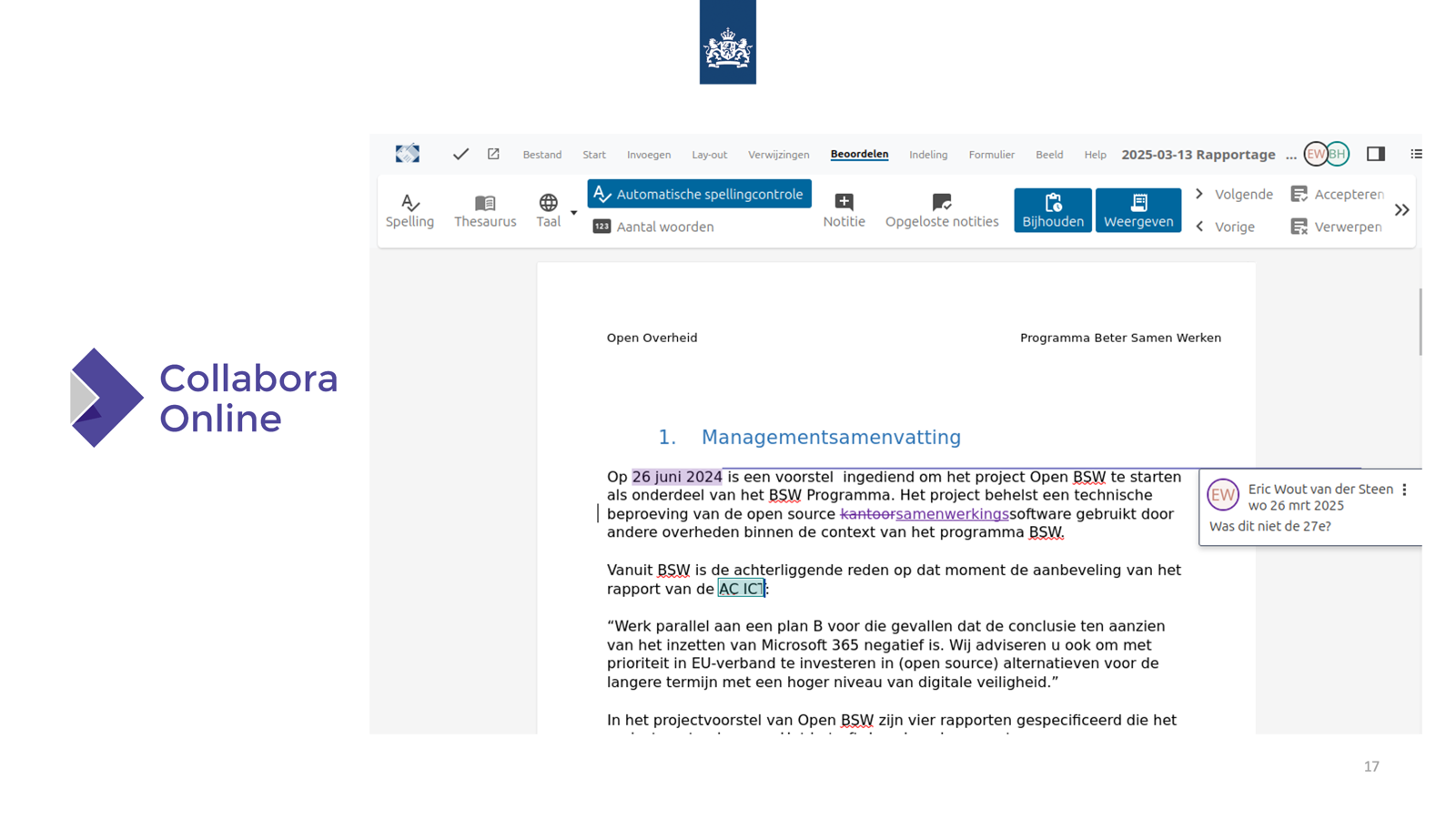
- Track changes (Review → Record changes) is the right tool when a document needs approval: edits stay visible until someone accepts them.
- Comments attach to a selection and can be replied to and resolved — use them for questions instead of editing text inline.
Working with spreadsheets
- Formulas, conditional formatting, charts, pivot tables and named ranges are supported — good enough for everyday reporting.
- Very large workbooks (tens of thousands of rows with heavy formulas) are slower in the browser than on the desktop; split them or export for heavy number crunching.
- Reference other sheets with
'Sheet name'.A1; when you rename a sheet, check the formulas that pointed at it.
Working with presentations
- Use the layouts to keep slides consistent; do not position every text box by hand.
- Present from the browser or download the file and present locally.
- Embedded video is not played in the editor; it works in the exported file.
Saving, versions and downloads
- There is no Save button: the file is written back to Drive continuously.
- Use Download as to export to another format (for example PDF) when you need to send the result by mail.
- Earlier versions can be recovered from Drive's version history when available in your deployment; otherwise download a copy before a big rewrite.
Limits and gotchas
- Macros/VBA are not executed. Documents with macros open, but automation is disabled — a deliberate security decision.
- Fonts that are not installed on the server are substituted; layout can shift slightly compared with a local Word installation. Use the fonts your organisation standardised on.
- Very complex documents (embedded objects, exotic fields) may render differently. Check the exported PDF before sending it to a customer.
- Only one person should own a file's structure; simultaneous massive copy/paste operations are correct but hard to follow.
Good to know
- Collabora is a shared service: the same instance serves everybody, so a huge spreadsheet open in many tabs slows down slightly for others too.
- Files opened here are not copied to a separate store; the permissions of the Drive file apply to the editor.
- If a file opens read-only, you have the viewer role on it — ask the owner to upgrade your permission instead of downloading and re-uploading.
Related
- Drive — where the files live and how sharing works
- Docs — for text written inside the platform
- Component documentation — how Collabora is deployed