Dictaphone
Dictaphone turns recordings into text. Upload a meeting recording, an interview or a voice memo, and get a transcript with speaker labels, timestamps and an AI summary you can edit and share.
Opening it
- Web:
https://dictaphone.<global.domain> - From the Bureaublad: the transcription tile
Recording or uploading
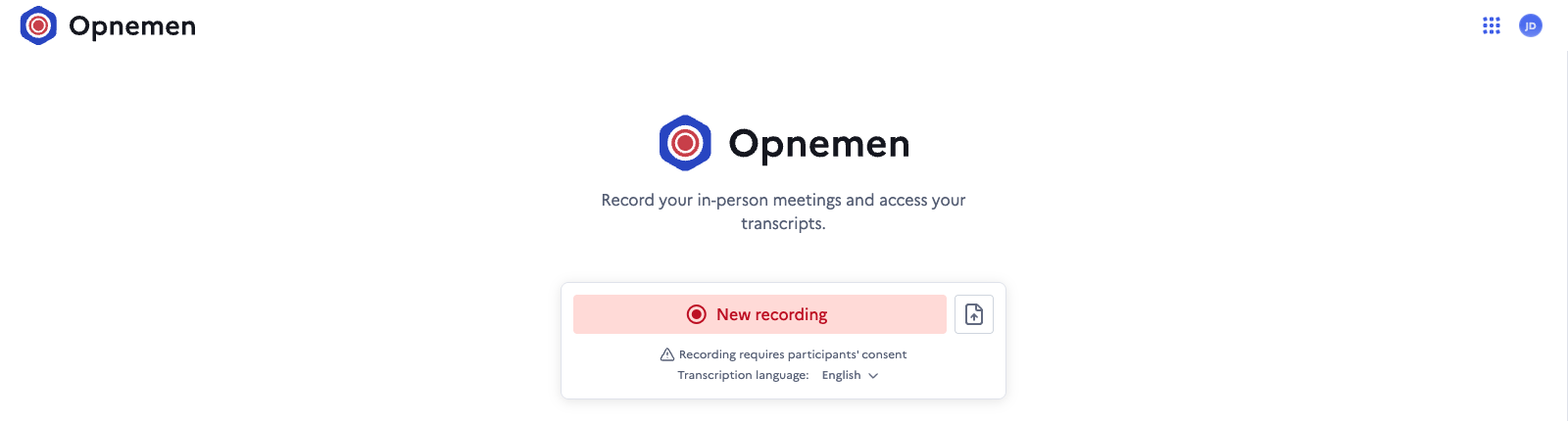
- Click New recording (or Upload).
- Choose a file (
.mp3,.wav,.m4a,.ogg, video files with an audio track) or record directly if your browser supports it. - Give it a meaningful title and pick the language spoken in the recording — this improves accuracy more than any other setting.
- Start the upload. Long recordings are processed in the background; you can close the tab and come back later.
- When processing finishes, the transcript appears with speaker labels and timestamps.
Reading and correcting the transcript
- Play the audio and follow the highlighted words; click a paragraph to jump to that moment in the recording.
- Correct names, jargon and numbers. Names are what automatic recognition gets wrong most often, and they matter most in the summary.
- Rename speakers (Speaker 1 → Janedoe) so the transcript is readable without the audio.
- Fixing the text once makes the summary noticeably better, because the summary is generated from the corrected transcript.
Summaries and follow-ups
- Generate a summary to get decisions, action points and an outline — useful as the basis for meeting notes.
- Copy the summary into a Docs page or a Projects page, so the outcome lives where the work happens.
- Keep the raw transcript as an appendix or a link; the summary alone loses detail people may need later.
Sharing
- Share a transcript the same way you share other MijnBureau content: with people by role, or with a link when you need to include somebody outside the platform.
- A transcript contains everything that was said. Share it deliberately: interviewees, customers and personnel conversations deserve a second thought before a link is forwarded.
- Participants should know that a recording is being transcribed. In many organisations it is also a legal requirement.
Tips for better transcripts
- Record in a quiet room and use one microphone per room rather than a laptop microphone at the far end of a table.
- Ask people to say their name once at the start; it helps speaker labelling.
- Avoid talking over each other — overlapping speech is the main source of errors.
- Split a very long session into parts (morning/afternoon) so processing and correction stay manageable.
- Set the language explicitly; do not leave it to automatic detection on short clips.
Good to know
- Processing time depends on the length of the recording; a one-hour meeting does not finish instantly.
- Automatic transcription is not a certified record. For minutes that must be exact, review the text — do not send it out unchecked.
- Recordings and transcripts stay on your organisation's infrastructure; nothing is uploaded to a public transcription service.
- If your deployment uses an external AI provider for summaries, your administrator configured that explicitly — ask them if you handle confidential material.
Related
- Meet — recording and live transcription of video meetings
- Docs — where the notes end up
- Component documentation — how Dictaphone is deployed