Chat (Element)
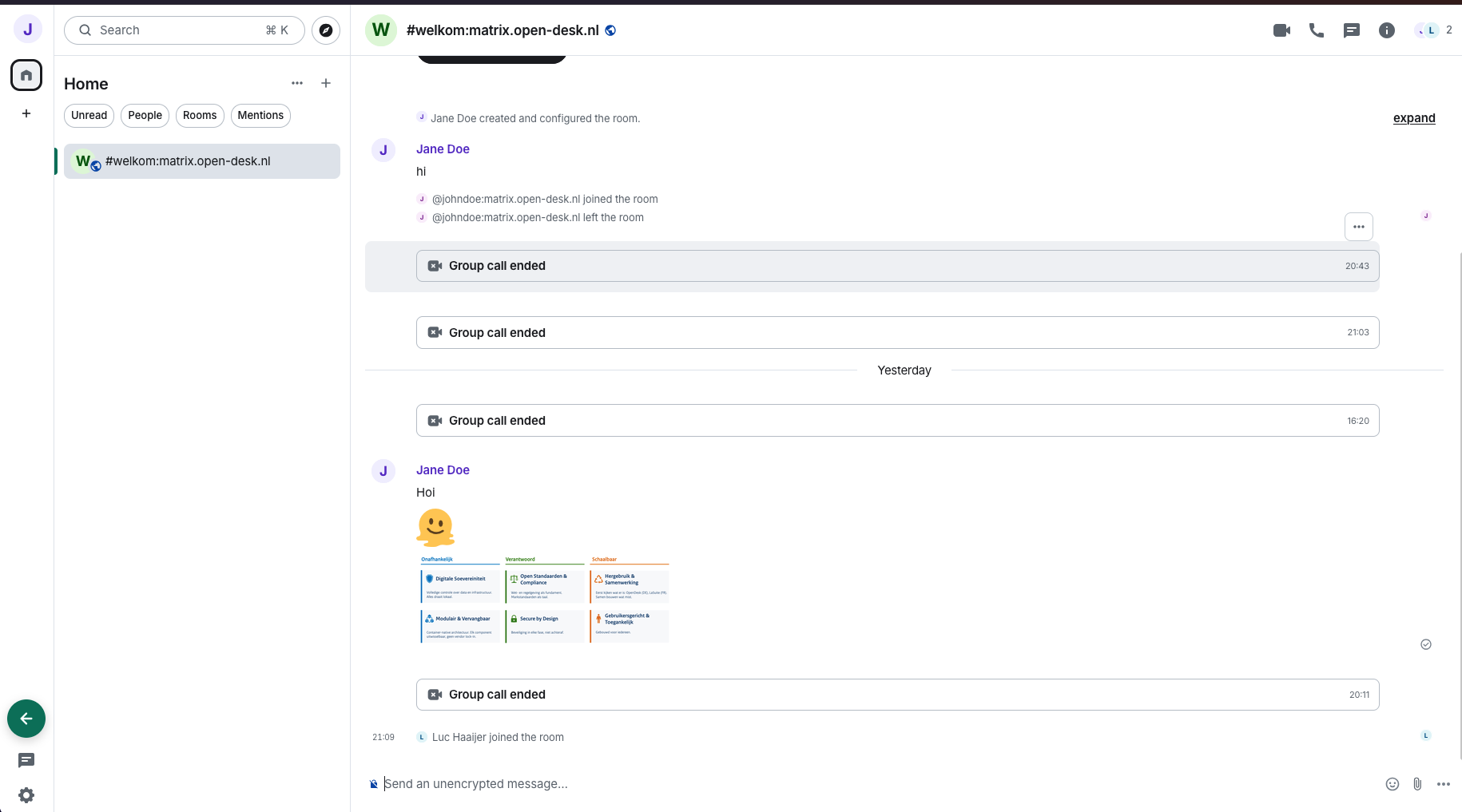
Chat is the MijnBureau messaging application. It is built on Matrix, an open protocol for decentralised, end-to-end encrypted chat, and you use it through Element. Because Matrix is a network rather than a single service, you can talk to colleagues on your own server and to people on other Matrix servers, without either side creating an account on the other's system.
Opening it
- Web:
https://element.<global.domain> - From the Bureaublad: the chat tile
- Mobile and desktop: install Element X (iOS,
Android) or Element Desktop, then choose Sign in and enter
matrix.<global.domain>as the homeserver. You are forwarded to the MijnBureau sign-in page.
Sign-in always happens through your central account. There is no separate chat password, and accounts cannot be self-registered.
The first five minutes
- Sign in and accept the invitation to any room your organisation added you to (new colleagues are often added to a general or team room automatically).
- Set your notification preferences (see below) — the default is chatty.
- Open Settings → Security and make sure key backup is enabled, then note your recovery key in your password manager.
- On a second device, sign in and verify it (see Devices and verification).
- Say hello in your team room.
Rooms, spaces and direct messages
| Concept | What it is |
|---|---|
| Direct message | A private, encrypted conversation with one person |
| Room | A group conversation; public to its members, private by default |
| Space | A folder of rooms, usually per team or project, with its own overview |
Typical workflows:
- Start a direct message — click + → Start chat, type a name or
@user:<global.domain>and pick the person. - Create a room — + → New room, give it a name, invite colleagues, and choose whether it is private (invite only) or public within your server.
- Create a space — + → New space, name it after the team, then drag existing rooms into it or create rooms from inside the space.
- Invite someone from outside — invite their Matrix ID, for example
@name:matrix.org. Federation means they join from their own server; you do not need to give them an account here.
Sending messages that people actually read
- Use threads (hover a message → Reply in thread) for side discussions; the main room stays readable.
- @mention someone (
@and start typing) when you need an answer; mentions trigger notifications, ordinary messages often do not. - Use reactions for acknowledgements instead of "ok" messages.
- Attach files by dragging them into the composer; images show a preview, everything else becomes a downloadable file.
- Edit or delete your own message from the message menu (⋯).
Calls and video
With Element Call enabled, calls happen inside the chat:
- 1:1 call — open a direct message and click the call icon.
- Group call — inside a room, click the video icon, or join a room that is configured as a video room.
- In a call you can mute, switch camera, share your screen and leave. Calls use the organisation's own media server; nothing is routed through a third party.
For scheduled meetings with agendas, recording and summaries, use Meet instead and share the meeting link in chat.
Devices and verification
End-to-end encryption means the server cannot read your messages — only your devices can. A new device therefore has to be verified before others trust it:
- Sign in on the new device.
- Element shows a verification prompt.
- On an already verified device, open Settings → Sessions, select the new session and confirm the emoji/QR comparison.
- If you have no verified device left, use your recovery key (the one from key backup) to restore your keys.
Without verification you can still chat, but other people's clients may warn that your messages cannot be verified — and you may not be able to read older history on the new device.
Losing both your recovery key and all verified devices means old encrypted history cannot be recovered by anyone, including your administrator. Store the recovery key in your password manager.
Notifications
- Settings → Notifications: choose per-room levels (all messages, mentions only, off), keyword alerts for your name or project names, and quiet hours.
- For a busy room, set Mentions & keywords only; you can always catch up via the room's unread marker.
- Desktop and mobile apps can show native notifications; browsers need permission the first time.
Good to know in a MijnBureau deployment
- Your display name and avatar are managed centrally (see Your account). Change them there, not in Element, or they will be overwritten.
- The room directory only lists rooms from your own server; cross-server discovery is deliberately limited.
- Guests are disabled: everybody who joins needs an account on your server or on a federated Matrix server.
- Administrators can enable message archiving where retention rules require it.
- Administrators moderate from a separate admin panel; see Administration if you need a room cleaned up or a user blocked.
Related
- Meet — scheduled video meetings
- Contacts — who is who
- Your account — profile, sessions and sign-out
- Component documentation — how chat is deployed