Meetings (Meet)
Meet is the MijnBureau video conferencing application. It runs on the organisation's own media server, so audio and video never leave your infrastructure. Use it for scheduled meetings, stand-ups, interviews and webinars — and for anything you want recorded or summarised. Depending on the deployment, participants can also dial in by phone.
Opening it
- Web:
https://meet.<global.domain> - From the Bureaublad: the meeting tile
- Participants without a MijnBureau account can often join through the meeting link, depending on your organisation's policy
Creating a meeting
- Open Meet and choose New meeting (or Create room).
- Give the room a recognisable name, e.g. Teamoverleg maandag.
- Copy the invitation link and share it in Chat or by mail — the link is the invitation.
- Optionally schedule it in your Calendar and paste the link into the event so participants find it at the right time.
Rooms can be reused: keep one standing link per team for recurring calls.
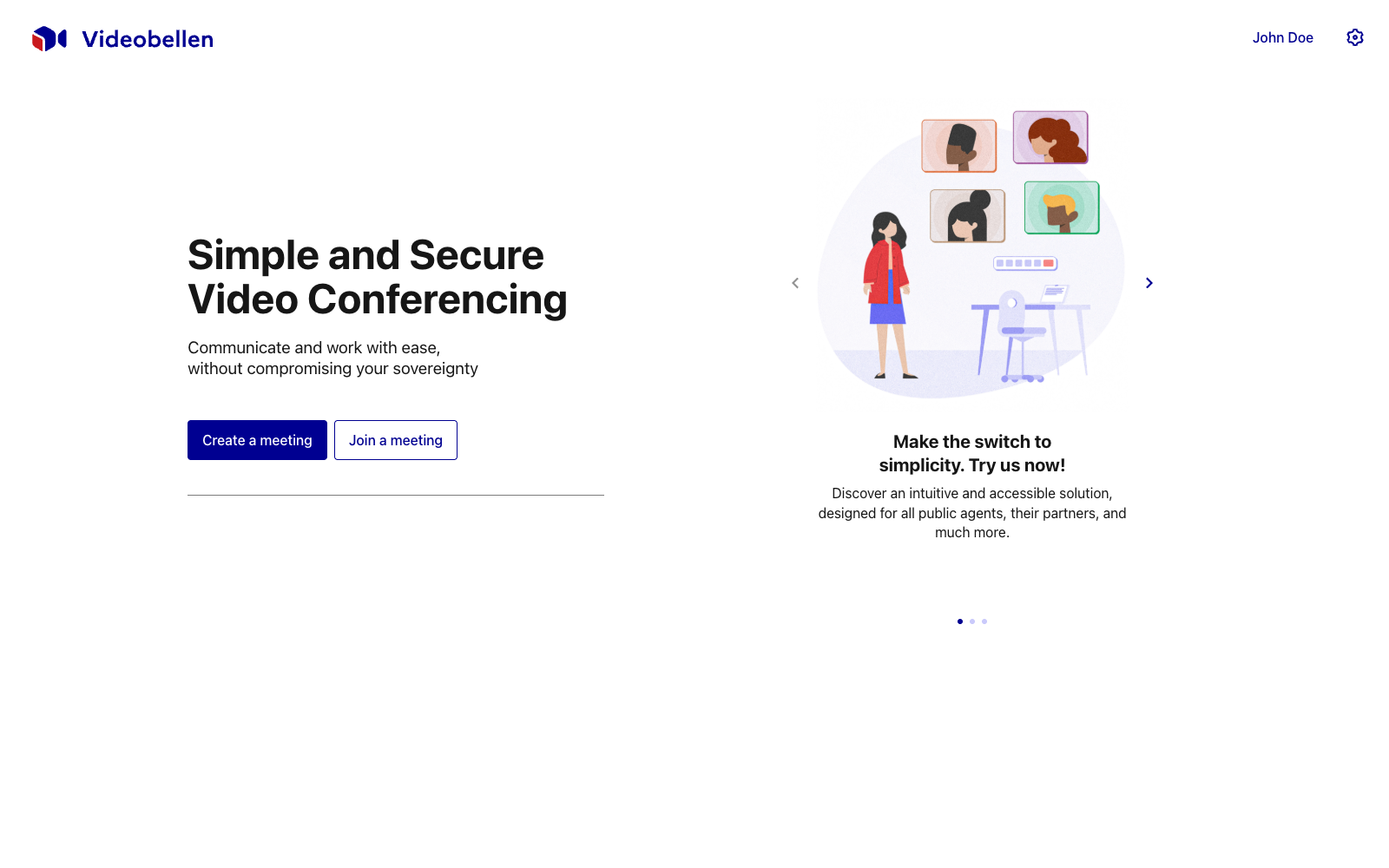
Joining a meeting
- Click the link you received.
- Allow the browser to use your camera and microphone (the first time only).
- Check your camera preview and microphone level, pick a device if you have several, and enter your name if you are joining as a guest.
- Click Join.
If you join before the organiser, you wait in the room; nothing is recorded until someone starts it.
During the meeting
| Control | What it does |
|---|---|
| Microphone | Mute/unmute; keep it muted while not speaking |
| Camera | Toggle video, or switch cameras |
| Share screen | Share a window, a browser tab or your whole screen |
| Chat | Text chat with the participants, useful for links |
| Participants | See who is present, mute a noisy participant |
| Recording | Start/stop a recording (if your role allows it) |
| Leave | Leave the meeting, or end it for everyone |
Practical tips:
- Share a tab rather than the whole screen when presenting slides; you avoid exposing notifications.
- Use headphones. Without them the microphone picks up the speakers and creates echo for everyone.
- On a weak connection, turn your camera off; audio has priority.
- Recording and AI summaries need consent — say so at the start of the meeting.
Recording, transcripts and summaries
When your deployment enables them:
- Recording produces a video file after the meeting; it is stored on your own infrastructure and offered for download or added to the meeting's files.
- Transcription turns speech into text.
- Summary produces meeting notes with decisions and action points, which you can share or copy into Docs.
Processing happens on the platform's own servers; recordings and transcripts are not sent to an external service unless your administrator configured an external AI provider.
Using Meet for interviews and external calls
- Create a room per interview, share only that link, and end the meeting afterwards so the link cannot be reused.
- Keep the waiting room behaviour in mind: participants can join before you arrive, so do not share a link before you are ready.
- Do not put confidential information in the meeting name — the name shows in the link.
Good to know
- Meet is the right tool for planned or recorded conversations; Chat is better for quick 1:1 calls.
- Audio quality depends on your network. The platform also runs a TURN service so participants behind strict corporate firewalls can still connect.
- If camera or microphone permissions are blocked by your browser, the meeting still opens but without media — check the icon in the address bar.
- The meeting list only shows meetings you created or were invited to; there is no public directory of rooms.
Related
- Chat — quick calls and follow-up conversation
- Calendar — invite people and attach the meeting link
- Dictaphone — transcripts of recordings
- Component documentation — how Meet is deployed