Mail (Messages)
Messages is the MijnBureau mail application: a shared inbox for teams, built for collaboration rather than for one person's private mailbox. Mail is stored on your organisation's own infrastructure and arrives through your own mail server.
Your address is <username>@<mail domain>, for example janedoe@example.org.
Mail to colleagues is delivered directly inside the platform.
A mail domain can be configured so that a mailbox is created automatically for every user the first time they sign in. Shared mailboxes are created by an administrator.
Opening it
- Web:
https://messages.<global.domain> - From the Bureaublad: the mail tile
Sign in with your central account. There is no separate mail password.
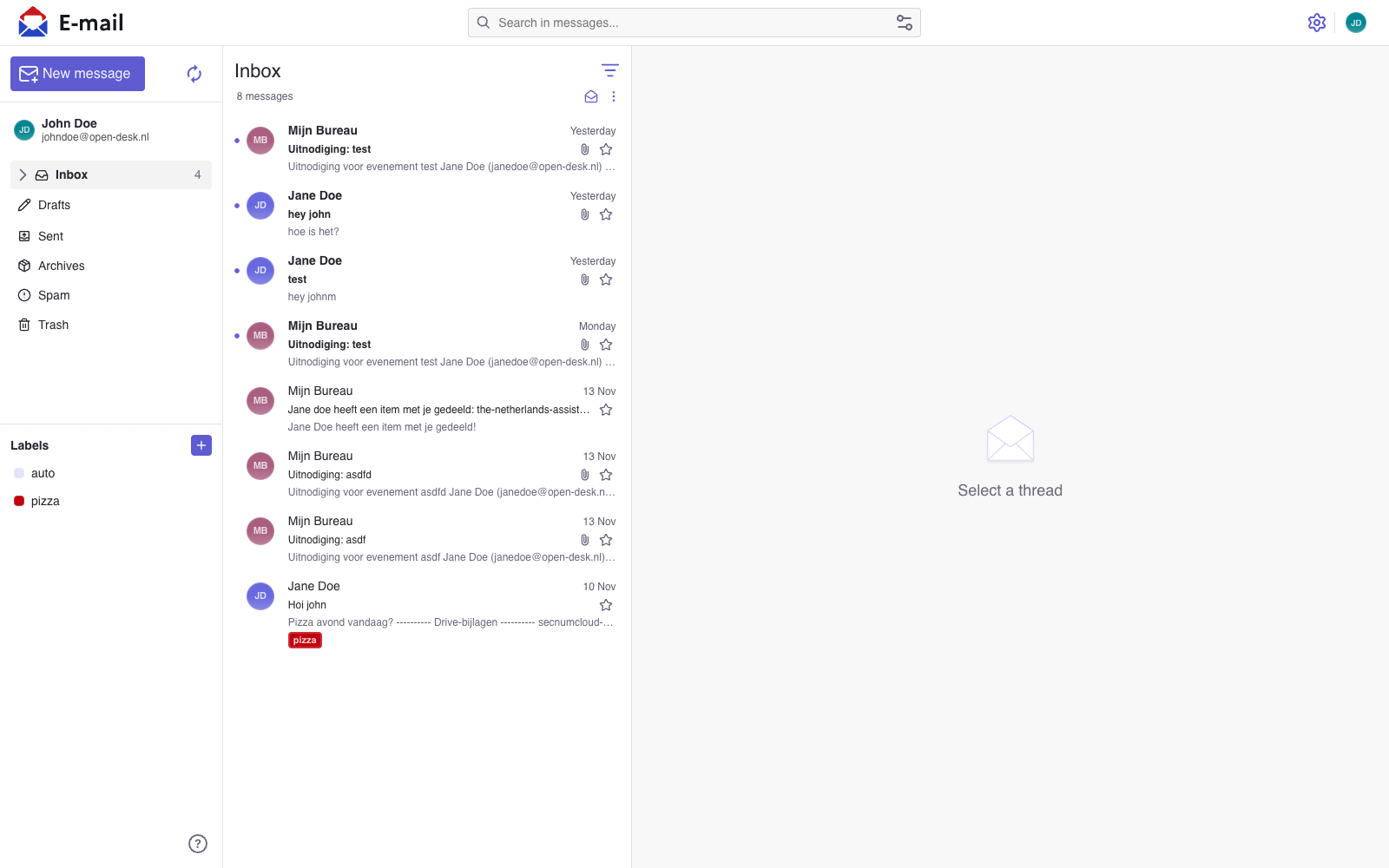
The interface
| Area | What it does |
|---|---|
| Mailbox list (left) | Your personal mailbox and any shared mailboxes you have access to |
| Thread list (middle) | Conversations, newest first; a thread groups a message and all replies |
| Reading pane (right) | The selected message, with reply, forward and thread actions |
| Labels | Custom tags to file conversations, shown above the thread list |
| Search | Searches subject, body, sender and recipients |
Sending mail
- Click New message.
- Type recipients in To; use Cc/Bcc when needed.
- Write a subject and your message. Use the formatting toolbar for lists, links and emphasis.
- Attach files with the paperclip — drag files into the compose window or pick them from your device. Large attachments can be sent as a link to Drive when that integration is enabled.
- Send. The message is filed in the thread automatically.
Drafts are saved as you type; close the window and reopen it from Drafts.
Working a shared mailbox
Shared mailboxes are the reason Messages exists: several colleagues handle the
same address (for example info@ or servicedesk@) without forwarding mail
around.
- Open the mailbox from the list on the left.
- Claim a conversation by adding a label, replying, or assigning it — whoever answers first is visible to the rest of the team.
- Internal notes stay in the thread, so context is never lost when a colleague takes over.
- Your administrator grants access to a shared mailbox; ask them if yours is missing.
Organising
- Labels — create one per topic or customer, then filter the thread list by label. Labels are per mailbox, so the team shares the same structure.
- Threads — keep related mail in one thread instead of forwarding. Reply inside the thread, and the whole history stays together.
- Archive / Spam — archive what is done, mark unsolicited mail as spam. Spam filtering runs on the mail server before delivery.
- Attachments — open or download from the message; attachments are scanned for malware before they reach your inbox when the antivirus component is enabled.
Search
Use the search field at the top of the thread list. Combine a sender with a
keyword (from:janedoe invoice) to narrow quickly. Add a label filter to search
inside one part of the mailbox.
Signatures, identities and aliases
- Your signature is part of your account settings and is appended to new messages.
- If you are allowed to send as another address (an alias or a shared mailbox address), pick it in the From selector of the compose window.
- Administrators manage domains and addresses centrally; you cannot create a new address yourself.
Good to know
- Do not delete your account's mailbox when you leave a project: reassign it or hand the address to a colleague, otherwise mail bounces.
- Deliverability (SPF, DKIM, DMARC) is configured by your administrator — see Secure email setup. Forwarding or "send as" from an external provider can break those checks.
- The web interface is the supported client. Ask your administrator whether IMAP/SMTP access is available in your deployment before configuring a desktop mail client.
- Messages can send notifications on behalf of other tools (document shares,
meeting invitations); they arrive as normal mail, often from a
noreplyaddress.
Related
- Calendar — meeting invitations arrive as mail too
- Drive — large attachments and shared files
- Component documentation — how mail is deployed