Projects
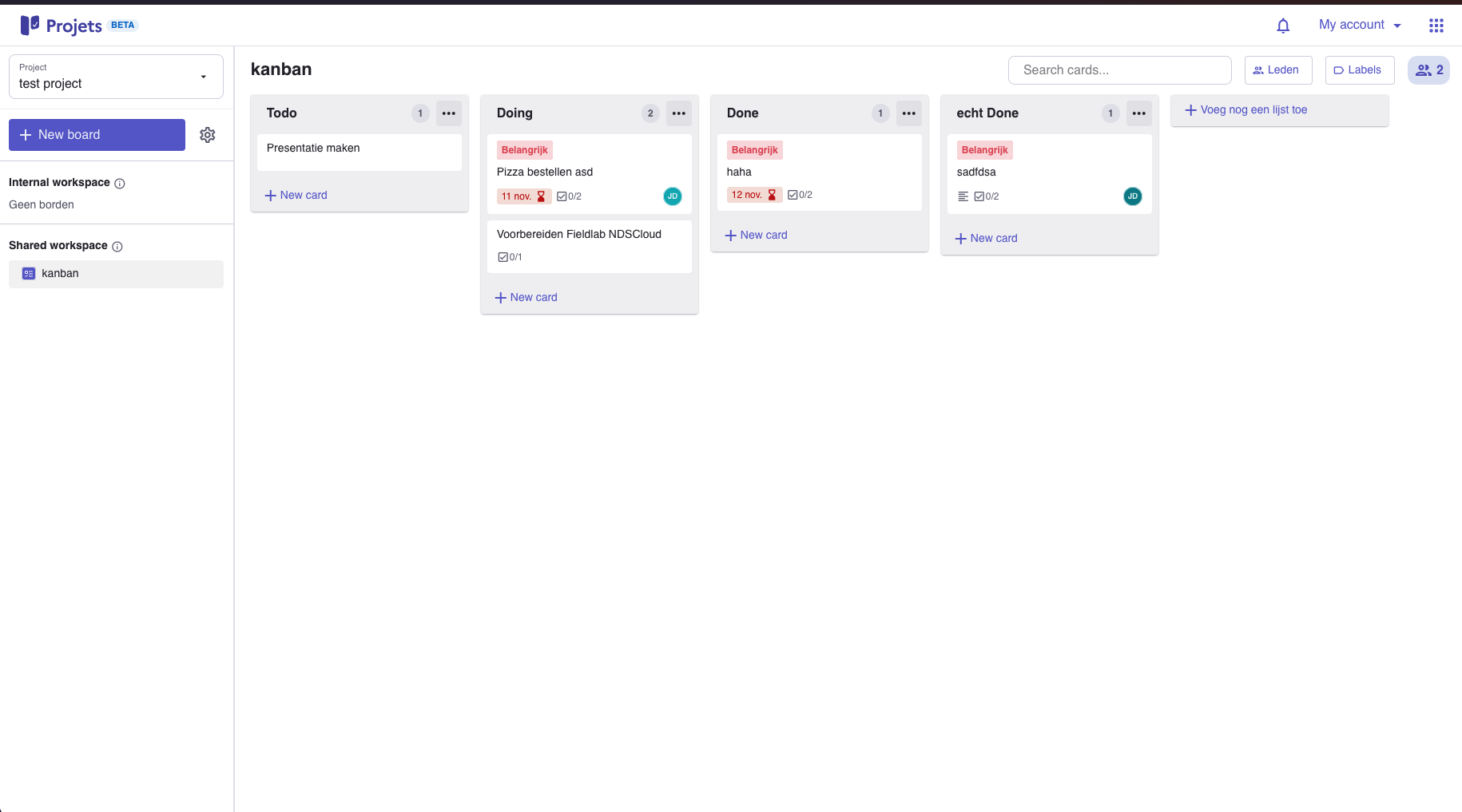
Projects is the MijnBureau workspace for plans: a project holds pages, subpages and tasks, with members who work on them. It is the place to keep a project's context together — the goal, the decisions, the planning — instead of spreading it over chat, mail and loose documents.
Projects is marked beta in the Bureaublad while the upstream project stabilises.
Opening it
- Web:
https://projects.<global.domain> - From the Bureaublad: the projects tile
The interface
| Area | What it does |
|---|---|
| Project list | All projects you are a member of, with recent activity |
| Page tree (left) | The structure of the project: pages and nested subpages |
| Editor (right) | The content of the selected page: text, lists, tables, tasks |
| Members | Who can read and edit the project |
| Templates | Starting points for recurring project types |
Creating a project
- Click New project.
- Name it after the outcome ("Website redesign"), not the department ("Marketing") — outcomes age better.
- Add a short description: goal, scope, deadline. This is the page everybody reads first.
- Invite the team with the right role (reader, editor, manager).
- Create the first pages: Plan, Decisions, Meetings, Links.
Starting from a template saves time when your organisation has a standard structure; otherwise steal the five-page layout above and adapt it.
Pages and structure
- Pages nest like a wiki: a page for the project, subpages per workstream, subpages per meeting series.
- The first line of a page is its title.
- Split a page once it grows past a few screens; a readable tree beats one enormous page.
- Move pages with drag-and-drop; links to them stay intact as long as the page exists.
Tasks
- Add a task anywhere in a page: they are checkbox items with an assignee and an optional due date.
- Use tasks for the things you want to see in a list, and keep prose for context. A page that is only tasks is hard to read; a project with no tasks is a wish.
- Review open tasks in your weekly project meeting and close or reassign them there — a task nobody owns is not a task.
Collaborating
- Members and roles mirror the rest of the suite: readers see, editors change, managers also invite and delete.
- Comments on a page are for questions and review; decisions belong in the page text so they are not lost in a resolved thread.
- Mentions notify a colleague; use them when you need an answer, not for every update.
- Copying a page into another project is the quickest way to reuse a structure.
Imports and integration
- When your deployment enables imports, existing pages can be imported from other tools; check what your administrator has turned on.
- Link to files in Drive and documents in Docs rather than duplicating content; one source of truth per subject.
- Meeting notes produced by Meet or Dictaphone can be pasted or attached to the relevant page.
Good to know
- A project is the unit of access: you share a whole project, not a single page. Use separate projects when parts of the work have different audiences.
- Archive finished projects instead of deleting them; the history is valuable and deletion is hard to undo.
- Notifications for mentions and invitations arrive by mail and in the app.
Related
- Docs — long-form documents
- Drive — files and attachments
- Contacts — find the colleagues to invite
- Component documentation — how Projects is deployed
- Administration — for administrators